MCP Tool Server for Logo Generation using FAL AI
Wellknown found it in public sources; nobody has proven control of it yet. Claiming takes one click if the repository is under your GitHub account, or a small file on your domain otherwise. Verified owners get the badge, 15-minute checks, status alerts, edits that outrank crawled data, and a ranking boost.
Agents can do it too: POST https://wellknown.network/api/v1/claims with {"agent":"iflow-mcp-mcp-logo-gen","method":"well_known_file"} — machine-readable steps at claim.json, guide at /docs/claim.
Everything here was measured by our prober or read from a registry. Nothing is self-reported.
Attributed to the source that supplied each field. Treated as claims, not facts.
# MCP Tool Server for Logo Generation This server provides logo generation capabilities using FAL AI, with tools for image generation, background removal, and automatic scaling. ## Demo [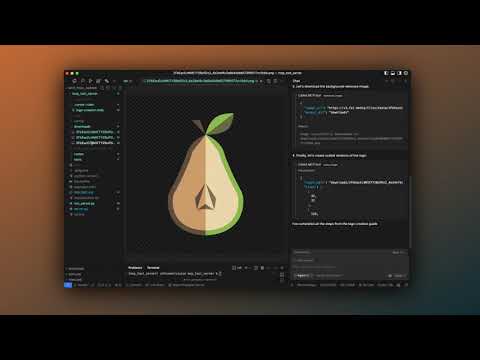](https://www.youtube.com/watch?v=Miemu1xEZng) ## Installation 1. Install `uv` (Universal Virtualenv): ```bash curl -LsSf https://astral.sh/uv/install.sh | sh ``` 2. Create and activate a virtual environment: ```bash uv venv source .venv/bin/activate # On Unix/macOS # or .venv\Scripts\activate # On Windows ``` 3. Install dependencies: ```bash uv pip install -r requirements.txt ``` 4. Set up your environment variables: - Create a `.env` file in the root directory - Add your FAL AI API key: ```bash FAL_KEY=your_fal_ai_key_here ``` ## Running the Server Start the server with: ```bash python run_server.py ``` The server will be available at `http://127.0.0.1:7777` ### Troubleshooting If you encounter a `FileNotFoundError` on Windows when running the server, make sure you're running the command from the root directory of the project. If the issue persists, try updating to the latest version of the repository which includes fixes for Windows compatibility. For Windows users specifically: 1. Make sure you've activated your virtual environment with `.venv\Scripts\activate` 2. Run the server from the root directory of the project with `python run_server.py` 3. If you see any path-related errors, please report them in the issues section of the repository ## Cursor IDE Configuration 1. Open Cursor Settings 2. Navigate to the MCP section 3. Add the following configuration: - URL: `http://127.0.0.1:7777/sse` - Connection Type: `SSE` - Enable the connection ## Notes - Always reference `@logo-creation.mdc` in your Cursor Composer for consistent results - Steps are defined in `@logo-creation.mdc` but tools can be used independently - All generated logos will be saved in the `downloads` …
Mapped onto the structured taxonomy from declared text and observed tool names. Confidence shown for derived entries.
Every source is kept verbatim. Field changes are logged as events.